
If you’re encountering a USB debugging blocked by an auto-blocker, you’re not alone. As you know, smartphones have become such an integral part of our lives that they contain everything – our bank details, our old and new memories, and our privacy. But did you know that your phone has a setting, a hidden door, that? If accidentally opened, could it put all your data at risk?
Yes, we are talking about the Developer Options. In today’s tech guide, we will go in-depth on how to fix the “USB debugging blocked by auto-blocker” problem and explain every technical aspect in such detail that you will never have to search anything on the internet again.
Table of Contents
What are Developer Options?
First, let’s know what this menu is and why it is hidden in our mobile phones. Android is an open-source operating system.. This means that it is possible to change Android. This menu is made by Google for app makers (developers).
A. System-Level Access
Developer options enable you to communicate with the phone’s kernel and hardware abstraction layer (HAL). When you turn on your phone, you’re basically telling your phone that you’re in charge.
If you want to try an app on your own device, you enable developer options. There you will find an option called USB debugging. This will connect your phone to your laptop via USB and make it easy to test your app on your Android phone. When you turn it on, you’re telling your phone, ‘I’m an expert; I know what I’m doing.’
Why hide it by default?
Google hides it by default because it contains settings that, if changed without understanding, can render your phone useless—a costly box that won’t even turn on. By 2026, smartphones have become so advanced that they manage their own security. Therefore, this menu is not necessary for normal users.
Why Fix USB Debugging Blocked by Auto Blocker in 2026?
Did you know that by 2026, cybercrime has become so advanced that hackers use AI to infiltrate your phone? There are 4 major risks of keeping Developer Options ON:

A. Banking App Security Protocols (Updated 2026)
In the modern day, banking apps (SBI YONO, HDFC, PhonePe, and GPay) are not just verifying your password but also scanning your phone’s ‘environment.’
If you have developer options on, the bank thinks… The bank believes “remote access” or “screen overlays” are running on your phone. This means you could have a hacker watching your phone screen while you are entering your PIN. With the new security updates in 2026, bank apps will not allow you to log in unless you disable these modes.
B. Protection Against Juice Jacking
Have you ever plugged your phone into a public station or airport? If you do, then you ought to be aware of these things. Leave debugging turned on your phone, and any malicious charger can steal all your phone data, photos, videos, and WhatsApp chats. This is known as juice jacking. Disabling developer mode to permanently close this vulnerability.
C. System Stability and Battery Life
Developer options include options like “Animation Scale” and “Background Process Limit.” Currently, the phone’s AI determines how much power is needed. If you manually tamper with these settings, the phone’s thermal management gets disrupted, causing the phone to overheat and the battery to drain quickly.
How to Turn Off Developer Options?
Please note that each company has its own different software. Let’s look at each one in detail.
A. Samsung (One UI 8.0 & Auto Blocker 2.0)
Samsung added “Knox Vault” in 2026 to build on its security.
(If you have Samsung’s Auto Blocker ON, it will “gray out” (disable) the Developer options.)
Steps: First go to Settings > Security and Privacy > Auto Blocker and turn it OFF temporarily.
Then go back to the Settings menu and scroll down, and you’ll see Developer Options.
Turn OFF the master switch at thetop. topmost.
Read It Also: Oppo Reno 15 Pro Mini: 200MP Camera and 2026 Price Leaks
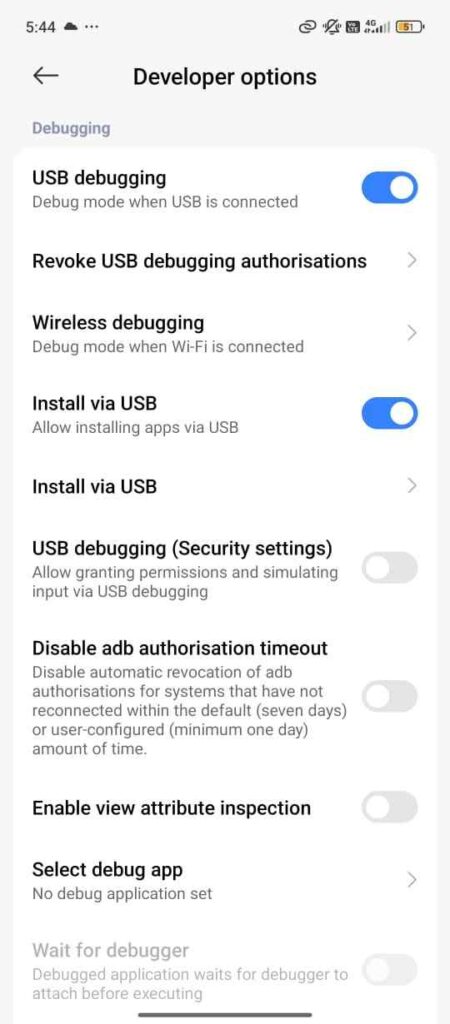
B. Xiaomi, Redmi, POCO (HyperOS 2.0)
In HyperOS by Xiaomi these settings are buried deep inside “Additional Settings.”
Steps: Settings > Additional Settings > Developer Options
There is a long list here; don’t worry, just switch off the toggle switch at the very top. Xiaomi phones have another option called “USB Debugging (Security Settings),” and it’s even more crucial to disable this as it controls system-level permissions.
C. OnePlus, Oppo, Realme (ColorOS / OxygenOS 16)
The settings in these phones are quite straightforward.
Steps: Settings > System Settings (or Additional Settings) > Developer Options.
After switching it OFF, be sure to restart your phone once to clear all system caches.
Read It Also: Android 16 Features: Top 5 Privacy Updates You Should Know
How to Hide Developer Options from Settings? (Permanent Removal)
Look, let me tell you, sometimes simply switching it off doesn’t remove the menu completely. If you want to make it disappear entirely, this is a 100% working trick.
Clear Settings Data: Go to your phone’s Settings > Apps > App Management.
Find the “Settings” app and click on it.
Go to Storage & Cache and tap the “Clear Data” or “Clear Storage” button.
What Happens Next?
Your settings app will close. When you open it again, it will be like new.
This won’t delete any of your photos or messages; it will simply make the “Developer Options” menu disappear completely.
Your Safety is in Your Hands in 2026
Finally, I want to tell you that in Android 16 and later versions, Google has built security around a “Zero Trust” model.
This means the system does not trust anyone. Only turn on developer options if you really need to do something technical. Once you are done with the task, disable it using the above methods. That’s a sign of a smart user.
Related Read: NCC Integrated Software (NIS) Login & Portal Fixes
Frequently Asked Questions (FAQs)
Fix USB Debugging Blocked by Auto Blocker on Samsung How?
Go to Settings > Security and Privacy. Tap on Auto Blocker and turn it OFF. Once disabled, you can easily enable USB debugging in Developer Options.
Why is my USB debugging greyed out on Samsung?
This usually happens because the Auto Blocker feature is active or your device is managed by a Work Profile. Turn off Auto Blocker or remove the enterprise account to fix the greyed-out button.
How to enable USB debugging on S25 Ultra?
On the S25 Ultra, navigate to Settings > Security & Privacy > Auto Blocker and disable it. Then, go to Developer Options to switch on USB debugging.
Why is USB debugging disabled by default on Samsung?
It is a security measure to prevent “Juice Jacking” and unauthorized data transfers. It protects your phone from malicious commands when connected to public charging ports or unknown computers.
How to enable USB debugging on Android 14, 15, or 16?
Go to Settings > About Phone and tap Build Number 7 times. Then, go to System > Developer Options. If it’s blocked, ensure that any “Auto Block” or “Active Protection” settings are turned off first.

I am a Computer Science Engineering student, and I write blogs on new research in technology and AI. My blog topics include Technology, Gadgets, Software, Apps, and Games. I explain new technologies and AI trends in simple and practical language.