
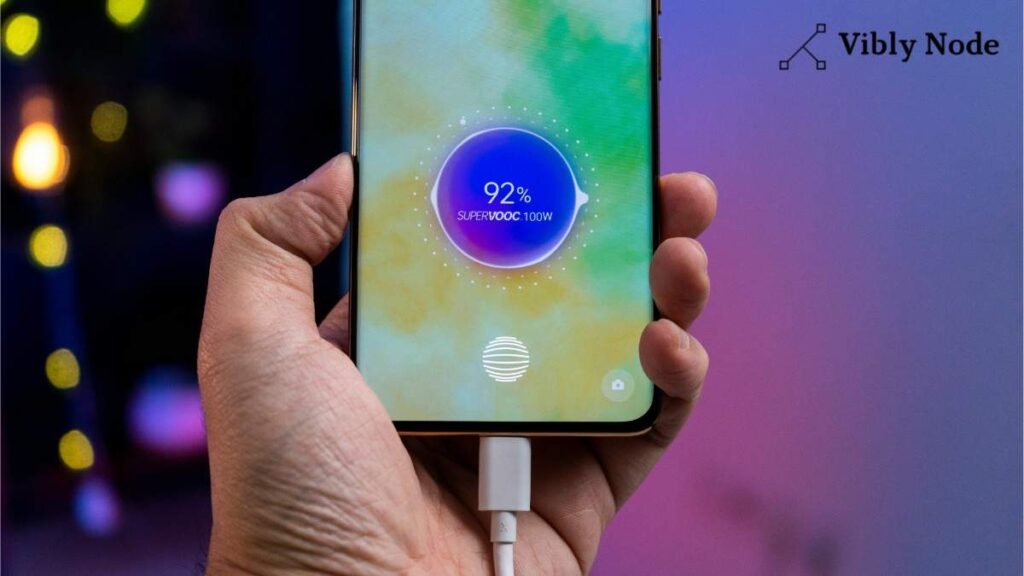
We use phones daily for all work , yet we often face real issues—such as the battery draining very quickly. We are often careless, partly due to a lack of proper knowledge regarding things like the correct way to charge the phone or Android battery health check. If you are unaware of these details, you can read the official tips on the Google Android Help page.
In this deep guide, I will tell you how you can make your old Android mobile phone’s battery life like a new life .
| Battery Issue | Quick Fix |
| Rapid Drain | Enable Adaptive Battery & Dark Mode |
| Overheating | Check Background Apps in Developer Options |
| Health Check | Use *#*#4636#*#* or Settings > Battery |
| Slow Charging | Clean USB Port & Use OEM Charger |
Table of Contents
What is Battery Health and Why It Matters?
First, understand what is battery health. Mobile phones use lithium-ion batteries ,which have a limited lifes. A normal battery is exhausted by repeated charging. If the Battery Health is 100% on your phone, it means it is working at its best. However, if your battery health drops to below 80%, you can expect to begin experiencing battery drain issues.
How to Check Your Android Battery Health?
| Method | Ease of Use | Accuracy | No App Needed? | Best For |
| Secret Code | Very Easy | Medium | Yes (Code Only) | Quick Status Check |
| AccuBattery App | Medium | Very High | No (Install App) | Deep Health Analysis |
| Physical Check | Easy | Basic | Yes | Checking Battery Swelling |
| Settings Menu | Very Easy | Low | Yes | Basic Battery Usage |
Unlike iPhones, there is no easy way to check the battery health on our Android phones. So there are three different ways to check the battery health of our mobile phones.
A. The Secret Dialer Code
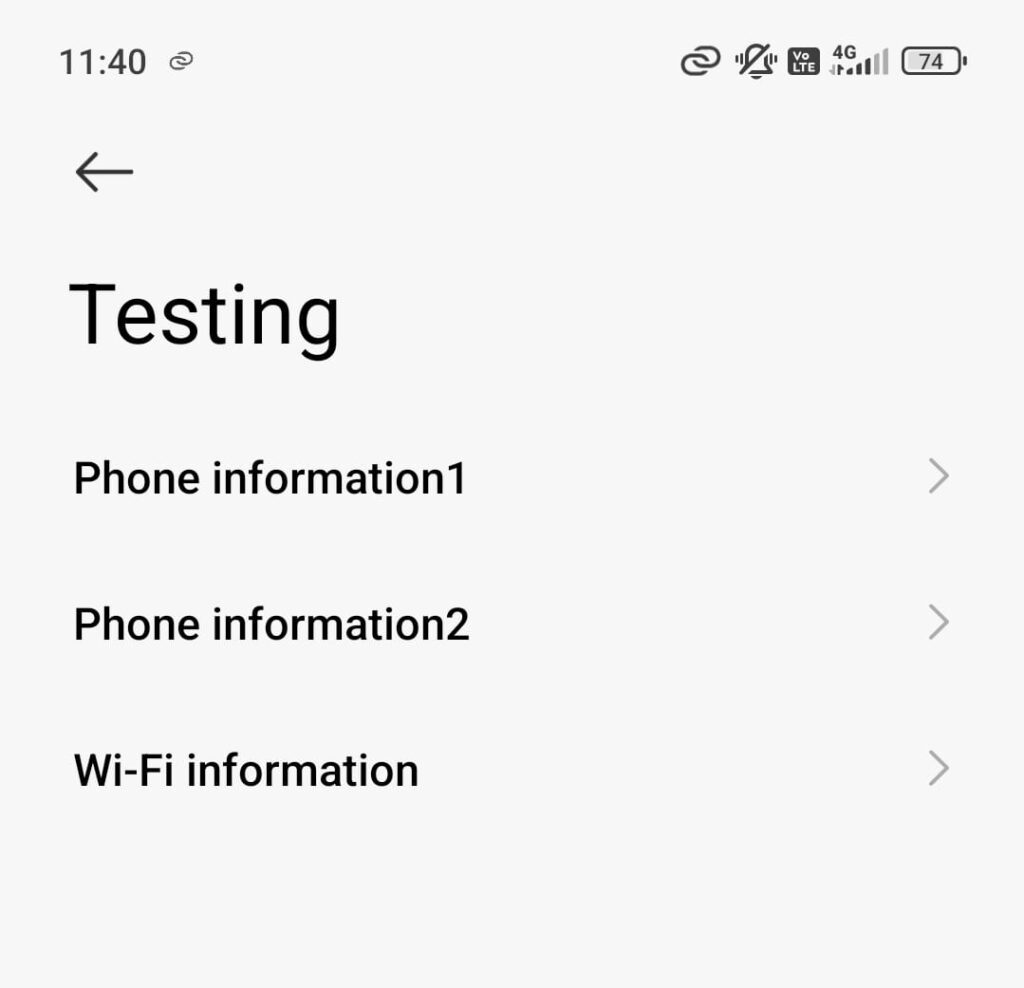
This is the easiest method and doesn’t require any app.
- Open your phone’s dialer.
- Type: *#*#4636#*#*.
- A hidden menu will open, called the “Testing Menu.”
- Click on “Battery Information.” Here you will see the battery temperature and health status.
Note: Due to a security update, this secret code is not working on the latest Samsung or Pixel model phones. If it doesn’t work on your phone don’t worry, I have explained below an alternative method using AccuBattery.
B. Using AccuBattery App
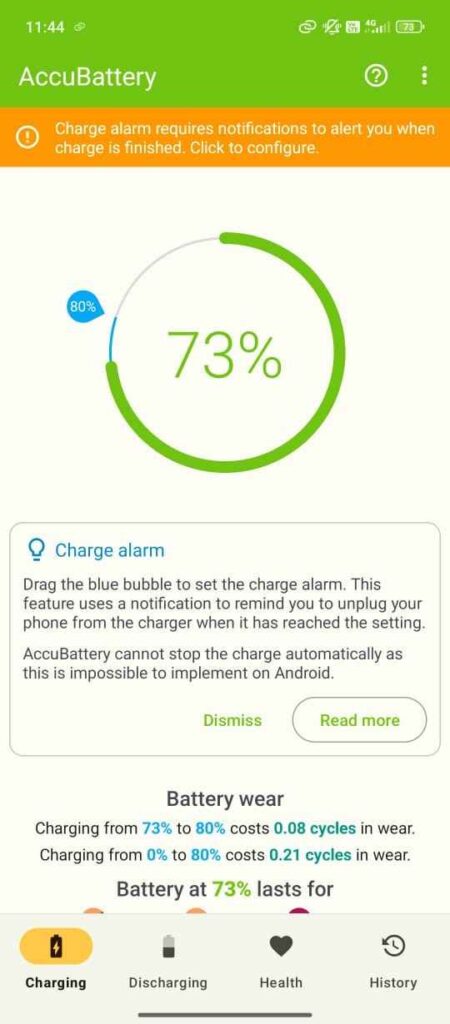
- If you want detailed battery data, the best app is AccuBattery. After install use your phone normally for 2-3 days.
- This app will tell you the “Design Capacity” of your battery and the “Estimated Capacity” remaining.
- It also tells you which app is using the most battery (in mAh) for daily life .
C. Physical Inspection
Sometimes the software shows everything is fine, but the battery swells and creates the main problem . If your phone feels slightly raised at the back, go to a service center immediately .If you not go then trouble very serious danger cause .
I have conducted a technical analysis of my Redmi device. This article is based on my personal analysis. I checked the Logcat and saw that the highest amount of ” Wakelocks ” in the background were from Google Play Services and Location Polling. I personally followed the below tips and my active battery drain has dropped from 15% to 10% – which I am very happy about so please try it .
Top 5 Reasons for “Android Using Battery Fast“
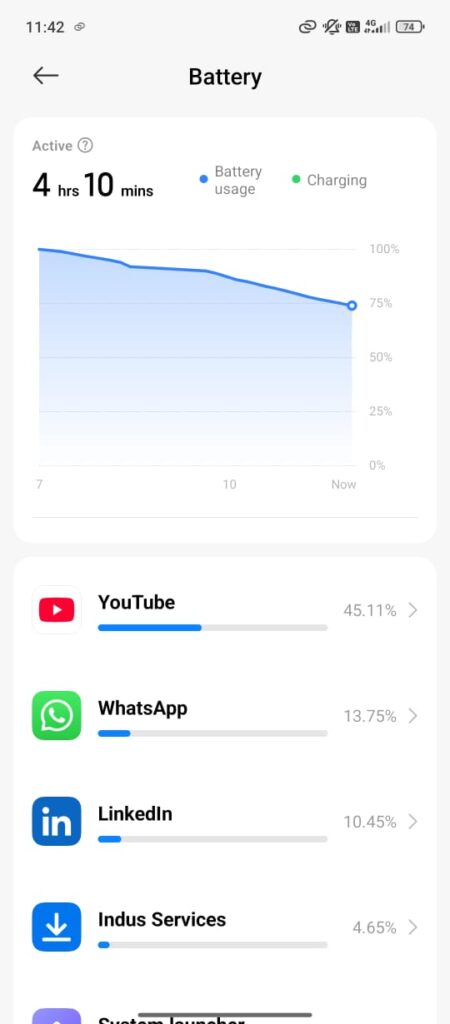
If your battery health is good but the battery is still draining quickly, these could be the 5 main reasons:
- High Refresh Rate (90Hz/120Hz): Newer phones now have 120Hz for a smooth display. This is the biggest battery sucker.
- 5G Network Search: 5G is not yet everywhere stable. The constant switching of your phone between 4G and 5G can be putting a load on the processor due to network issues.
- High Brightness & Auto-Brightness: We usually set the screen to very bright. Auto-brightness uses a sensor that also drains the battery so use always auto system for saving battery life .
- Meta Apps (Facebook/Instagram/WhatsApp): These apps are always running in the background so that you can receive notifications instantly.Off unwanted notification like facebook,insta ,whatsapp etc.
- Location Services (GPS): Apps like Google Maps and google Uber,rapido and many more are constantly tracking your location.
Live Video Guide: Step-by-Step Battery Health Check
How to Fix Battery Drain: 100% Working Tips (2026)
Now let’s talk about the solutions. I’ve tried these tips myself on my own phone and others:
So I am facing this issue in my own Redmi 12 mobile phone. I’ve had this new phone for a little while now and have been having battery drain problems. I also switched to dark mode and enabled battery saver. “Trust me, these two small changes made a huge difference in my daily backup. And I am very happy because for only two setting makes the high difference .
Step 1: Change Refresh Rate to 60Hz
If you don’t play games, go to Settings > Display and select Standard Refresh Rate (60Hz). This can give you up to 15–20% extra battery backup.
Step 2: Activate Dark Mode (AMOLED Screen Only)
If your phone has an AMOLED display (like my new Redmi Note 5G does), then turn on Dark Mode. On AMOLED screens, black pixels turn off, resulting in lower battery consumption, I really like this mode ,always use it for saving battery.
Step 3: Limit Background Apps
Go to Settings > Apps and enable ‘Restrict Background Data‘ and ‘Restrict Battery Usage‘ for apps you do not use frequently (such as shopping apps and social media apps and many more).
Step 4: Disable the “Always On Display” (AOD)
Always On Display (AOD) looks great, but it consumes battery. By turning it off, you can save up to 15–20% of your battery throughout the day . I personally use it only when I am out on a trip or travelling and meeting for long trips .
Step 5: Optimizing with ‘Battery Saver’
Android’s Battery Saver feature is quite smart. Instead of waiting until the battery drops to 30%, turn on Battery Saver when the level is around 30–40% (on some phones, this happens automatically). This is an excellent feature that will further improve your battery backup.Its able in all phones for saving battery life.
Must Read: Learn How to Protect Yourself from Phishing Attacks Online
Advanced Hack: Developer Options for 2026
If your battery takes a long time to charge or drains very quickly, go to the ‘Build number’ section within the Developer Options and tap it seven times to enable Developer Options. Doing this will stop all processes running in the background, thereby reducing battery consumption by up to 11%. You should definitely give this a try.
Charging Habits: How to Increase Battery Life Span
Look, you need to understand that you yourself decide whether your battery will last one year or two years. How do you decide this? It’s all about how you charge your mobile phone.
Charging 20-80 Rule:
Don’t let the battery of your phone run down to 0% or charge it to 100%. You want to keep the battery level between 20 and 80%.
The truth is, lithium-ion batteries don’t like to be put under too much pressure. Charging them to 100% or running them all the way down to 0% is a lot of stress on the battery cells. For example, maintaining the charge between 20% and 80% will double your battery’s life span.Its not know the 80 percent people.
Heat is the Enemy:
You should never use your phone while it is charging doing so causes the device to overheat, which damages the battery and leads to sudden shutdowns. If your room is very hot, strictly avoid using the phone while charging. If you are playing games, remove the back cover first. Remember, the hotter the phone gets, the faster the battery drains—so it is best to put the phone down.Many times chance to cause danger problems to your body.
Hot Update: JioStar 2026: Download App & Check New Plans
Use Original Charger:
Always use the charger that came with the phone or buy a branded charger in this age of fast charging.
No matter how advanced technology gets, battery life always depends on the user. Follow the tips above and your battery health will stay above 90% for a long time.
And you don’t have to buy a new phone. Just use your current phone a little more intelligently!”
This guide is useful for:
- Redmi users
- Samsung users
- OnePlus users
- Vivo & OPPO users
- Motorola users
- Anyone whose Android battery drains quickly
- People planning to buy a new phone because of poor battery life
Have questions? Reach out through our About Us page to learn more about Vibly Node’s mission!
Frequently Asked Questions (FAQs)
How do I check the battery health of my Samsung mobile?
Ans: Open the Samsung Members app on your phone. Go to Get Help > Interactive Checks > Battery Status. It will instantly show if your battery life is “Good” or needs a replacement.
Can I check my mobile battery health online?
Ans: No, you cannot check hardware health through a website. Any site claiming to do this is fake. Always use built-in settings or trusted apps like AccuBattery for real data.
Where is the battery health option in iPhone?
Ans: Go to Settings > Battery > Battery Health & Charging. The “Maximum Capacity” percentage shows how much your battery has aged compared to when it was new.
How to Check Battery Health on Android?
Ans: The most accurate way is using the AccuBattery app. It tracks your actual charging sessions to calculate the real health percentage of your battery over time.
Is there a free tool for battery health and life checking?
Ans: Yes, apps like CPU-Z and AccuBattery are completely free. They provide deep details about battery temperature, voltage, and overall health without any cost.
How to check Android battery health using a secret code?
Ans: Open your phone’s dialer and type *#*#4636#*#*. Select “Battery Information.” This secret code works on many Android devices to show real-time battery status, voltage, and temperature without any app.
How to check battery health percentage in Android like iPhone?
Ans: Unlike iPhone, most Androids don’t show a “Maximum Capacity” percentage directly. However, in Android 14 and 16, you can go to Settings > About Phone > Battery Information to see the “Cycle Count.” A lower cycle count means better battery health.
Is there an Android battery health check online tool?
Ans: No, physical battery health cannot be checked through any website. Online “Battery Checkers” are often scams. Always rely on built-in settings or official manufacturer apps like Samsung Members or MyOPPO.
How to Check Your Laptop Battery’s Health?
Ans : Run the command in CMD. This will generate a file that displays your battery’s original vs current capacity.

I am a Computer Science Engineering student, and I write blogs on new research in technology and AI. My blog topics include Technology, Gadgets, Software, Apps, and Games. I explain new technologies and AI trends in simple and practical language.