If you’re a Windows 11 user, you may have noticed that your PC has been behaving a little weird. After systems began freezing at the sign-in screen, many users are desperately looking for a Windows 11 login screen freezing fix, user. On the flip side, apps are showing a “no connection” error when the internet is on, which is really frustrating.
But don’t worry, you are not alone. This is a common problem many users are facing in 2026. Microsoft has issued an emergency “out-of-band” update (KB5085516) to fix this issue and provide a permanent fix for the Windows 11 login screen freezing fix. In today’s post, we will go over why this update is needed, what specific issues it fixes, and how you can install it without any errors. So don’t panic. Stay cool and read on.
| Issue | Problem | Status |
| Login Screen | System hangs at sign-in | Fixed |
| Internet Bug | “No Connection” error in apps | Fixed |
| Power Loop | PC restarts instead of shutting downalone;.. | Fixed |
| Taskbar | Explorer.exe memory leaks | Fixed |
| WinRE | Recovery Environment not loading | Updated |
Table of Contents
To help you understand this problem better, I want to tell you a personal story. I have an HP Victus laptop running Windows 11. Everything worked fine until a few days ago, when the system started acting weirdly after a recent update.
Each time I started the laptop up, it would lock up at the login screen. The mouse cursor would move, but clicking did nothing. Sometimes I had to force a shutdown two or three times to get it going. Besides that, there was another weird problem. My internet actually worked (I could watch videos in my browser), but the minute I opened any Microsoft apps, they would show a “No Internet Connection” error.
And this is where it gets interesting.
My friend has a Dell laptop that runs on Windows 10 Pro. He was on his system at the exact same time and didn’t have a single problem. His laptop fired up perfectly, the login was instant, and all of his applications were happily using the internet.
This led me to an important conclusion: the issue wasn’t with the hardware but rather a recent Windows 11 update that had been deployed.
In other words, my system had become internally confused. The internet was actually up, but parts of the system couldn’t see it. There was a battle between the login system and the network services going on.
I did a little searching and found Microsoft’s emergency update KB5085516. I installed the update, and slowly but surely all the problems fixed themselves: the login screen stopped freezing up, the “No Internet” error disappeared, and the system ran well again.
“It’s not always hardware,” he said. “Sometimes a little bug in the software will make the whole system unstable.
Why You Needed a Windows 11 Login Screen Freezing Fix
Let me tell you, in the last few weeks, after Microsoft’s routine security update (KB5079473), users from all over the world bombarded the company with complaints. This I know first hand as a CS student and blogger. Doing a technical analysis of the issue I found Windows’ network stack and identity manager were working against each other. So, these technical words might be a little strange to you, so let me tell you this with a real-life example for you to understand.
You are in your office. Your phone or laptop is connected to Wi-fi. You are watching YouTube on your browser. But the moment you open any Microsoft software or app like Microsoft Teams or OneDrive, it displays a message saying, “Please check your internet connection. This was a software bug that basically was bringing user productivity down to zero. Hopefully that all makes sense to you now.
Read Also: Harmful Effects of Gadgets on Health & Mind
The 5 Major Bugs This Update Fixes
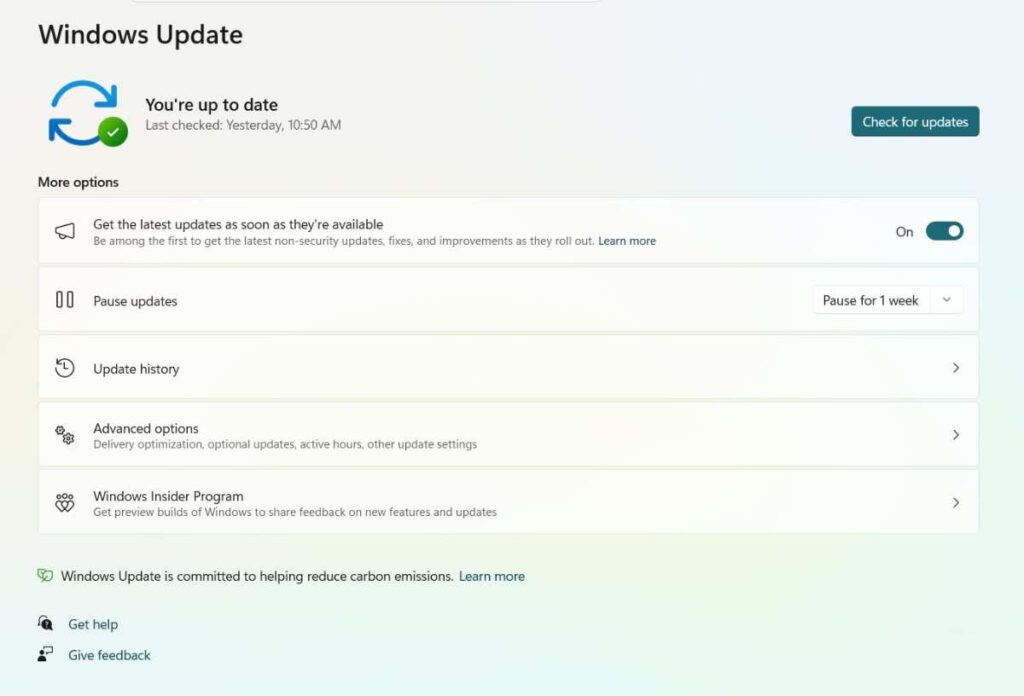
This update (KB5085516) is more than just a simple patch; it is a way to repair core functions. Here’s a look at how it fixes a Windows 11 login screen freezing issue and more.
A. Shutdown and Restart “Infinite Loop”
I have seen user reports that when they try to shut down their PC, the PC, instead of shutting down, reboots itself. This problem was due to a relatively small bug in the kernel-level power management system, which has now been successfully fixed.
B. WinRE Bug (Recovery Environment)
This was a particularly serious bug: if your PC crashed for any reason, and you tried to fix it by going to the advanced boot options, Windows wasn’t loading the recovery environment. advanced boot options recovery mode. recovery situation. That meant that you were not able to fix your PC… There is no other way to fix this, Microsoft has updated the WinRE image file in this patch.
C. Authentication Issues with Office 365 and Outlook
This really frustrated business users. A bug in Windows’ Web Account Manager was causing Outlook to repeatedly ask for passwords or freeze at the login screen.
D. Taskbar and Start Menu freezing
Is your taskbar disappearing sometimes? This was a recurring problem with the 2026 updates. Also fixed a memory leak with our new emergency update. Everything runs a lot smoother now than it did before.
E. Troubleshooting USB Debugging and Auto-Blocker
The problem, of particular interest to Android developers and tech enthusiasts, was caused by a new Windows “auto-blocker” feature that was blocking Android USB connections. With this new update, permissions have been improved to help make sure your development workflow is not interrupted.
Read Also: Howin it,Also: HowAlso: How to Enroll in Android 17 Beta Program Step-by-Step
Technical Breakdown: How Does KB5085516 Work?
Let me break it down for you. To put it another way, when you click the “Install” button, Windows is busy behind the scenes replacing your system files. The process involves two types of updates:
- The first one is called the “Dynamic Update,” which updates the Windows setup engine itself to make sure that future updates can be installed without any errors.
- The second part is “Security Patching,” and it contains the most recent security definitions that were released in March 2026 to help safeguard your PC against the newest emerging ransomware threats.
Read Also: NCC Integrated Software: Everything You Need to Know
Step-by-Step Installation Guide (The Right Way)
Now I will show you the right installation process and how to handle errors like the common “Error 0x800f0922” and get you a smooth Windows 11 login screen freezing fix. Now I will show you the right installation process and how to handle errors like the common “Error 0x800f0922” and get you a smooth Windows 11 login screen freezing fix. Now I will show you the right installation process and how to handle errors like the common “Error 0x800f0922” and get you a smooth Windows 11 login screen freezing fix. To prevent this, please do the following: To prevent this, please do the following: To prevent this, please do the following:
- System Check The first thing to do is make sure you have at least 10GB free on your C: drive.
- Windows Update: Go to Settings > Windows Update
- Optional Updates: Remember that critical updates are generally located under the heading “Optional Quality Update.” Click there and choose “Download and Install.”
- Pause Other Tasks: Don’t run heavy software or games in the background while the update is in progress.
And if, like me, you see the update progress stuck at 100% and think it has frozen, don’t panic. Wait 15-20 minutes. Windows is likely busy backing up your old files.
Troubleshooting: What If the Update Fails?
If your update keeps failing and failing – like mine did – here are a few manual methods you can try:
Microsoft Update Catalog Search on Google for “Microsoft Update Catalog KB5085516” From there, download the file for your version of Windows (x64 or ARM64) and install it manually.
SFC and DISM Commands:
Open your CMD (Command Prompt) as admin and type the following commands: Open your CMD (Command Prompt) as admin and type the following commands: Open your CMD (Command Prompt) as admin and type the following commands:
These commands will repair any corrupted system files and thus clear the path for the update to successfully complete.
Frequently Asked Questions:
How to fix Windows 11 login screen freezing?
The most effective Windows 11 login screen freezing fix is installing the emergency update KB5085516. This patch resolves conflicts between the network stack and identity manager that cause the system to hang during sign-in.
Why does Windows 11 freeze on startup before the login screen?
This usually happens due to corrupted system files or a power management bug. You can fix this by booting into Safe Mode and running the sfc /scannow command in CMD to repair the kernel-level files.
What to do if Windows 11 is freezing after login?
If your PC freezes after entering your password, it is likely a memory leak in Explorer. exe. Go to Settings > Windows Update > Optional Updates and install the latest 2026 quality patches to stabilize the taskbar and start menu.
Is there a free way to freeze the Windows 11 login screen?
Yes, it is 100% free. You can download the KB5085516 update directly from Windows Update settings or manually from the Microsoft Update Catalog without any third-party paid tools.

I am a Computer Science Engineering student, and I write blogs on new research in technology and AI. My blog topics include Technology, Gadgets, Software, Apps, and Games. I explain new technologies and AI trends in simple and practical language.